

Install and Configure the Plugin
Install the plugin
Log in to your Dify platform, navigate to Tools → Plugin Marketplace, search for Somark, and add the plugin.
Configure plugin settings
After installation, open the plugin configuration page:
- API Base URL: Defaults to
https://somark.tech/api/v1. No changes needed in most cases. - API Key: Enter your SoMark API Key.
No API Key yet? Get 1,000 free pages at the SoMark workbench
Using SoMark in a Workflow
Configure the Start node
In the workflow Start node, add an input variable with type File. This variable will receive the user-uploaded document and be passed to the SoMark tool node downstream.
Add the SoMark tool node
In the Dify workflow editor, click + to add a new node, choose Tool, then find and add the Somark > Somark Document Parsing node.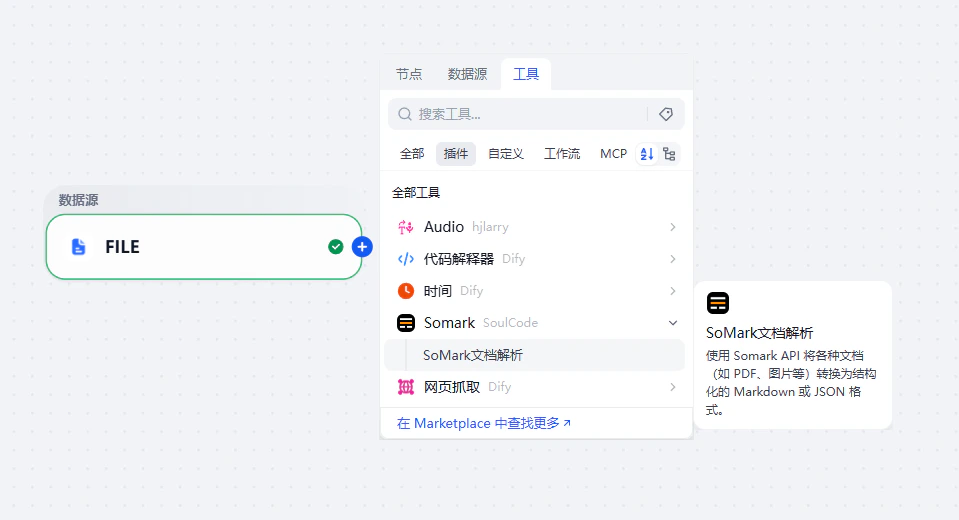
Configure input variables
Click the variable icon 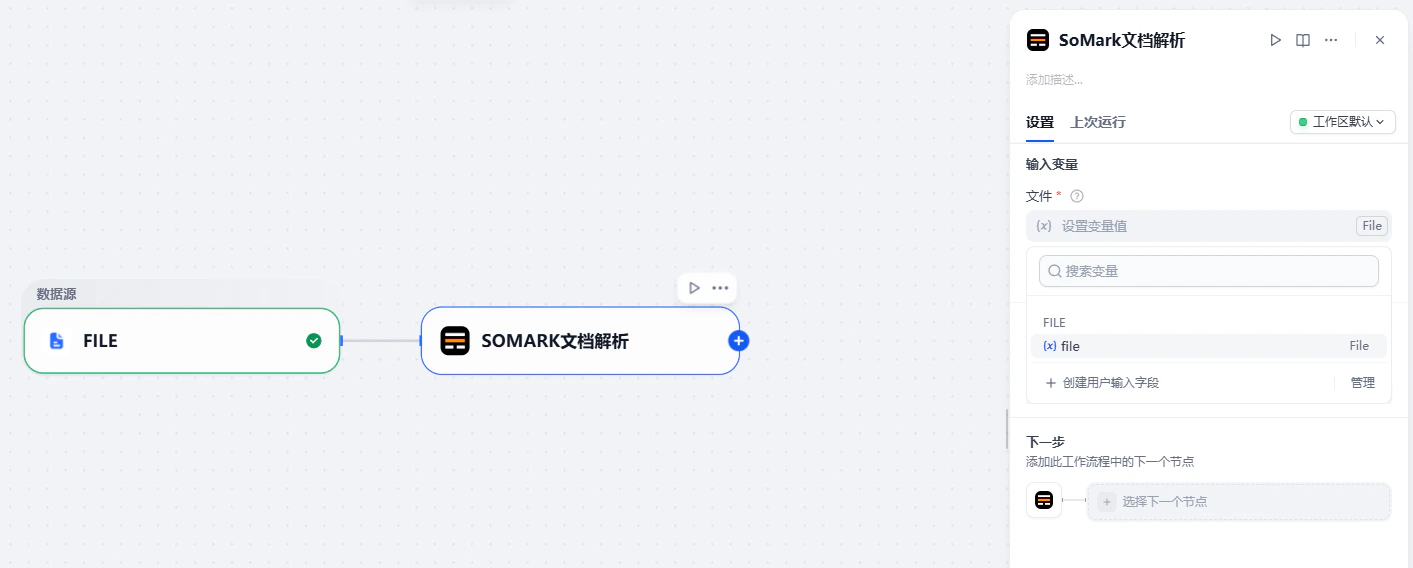
{x} in the input field and select the file variable defined in your Start node (e.g. sys.files). The API Key is handled automatically by the plugin configuration — no need to enter it in the node.Parameters and Outputs
Input Parameters
| Parameter | Type | Required | Description |
|---|---|---|---|
file | file | ✅ | File to parse. Supports PDF, PNG, JPG, JPEG, BMP, TIFF, JP2, GIF, HEIC, HEIF, WEBP, DOC, DOCX, PPT, PPTX, and more. Max 200MB per file, max 300 pages. |
Output Variables
| Variable | Description |
|---|---|
markdown | Parsed document content in Markdown format, preserving the original layout including headings, tables, lists, equations, and images |
json | Full raw JSON response from the SoMark API, containing detailed structured data for each document element (type, content, bounding box, page number, etc.). Ideal for advanced processing in a code node |